How-to and examples
Focused examples
Small examples, one topic each, so you can learn a single feature without reading a whole game. They are screens of one
project, samples/Examples, which builds against the published SDK and is played by
MicroEngine’s automated tests. Every listing on this page is quoted from it.
Run them all from a clone of the repository, or copy the folder anywhere (it references the NuGet packages):
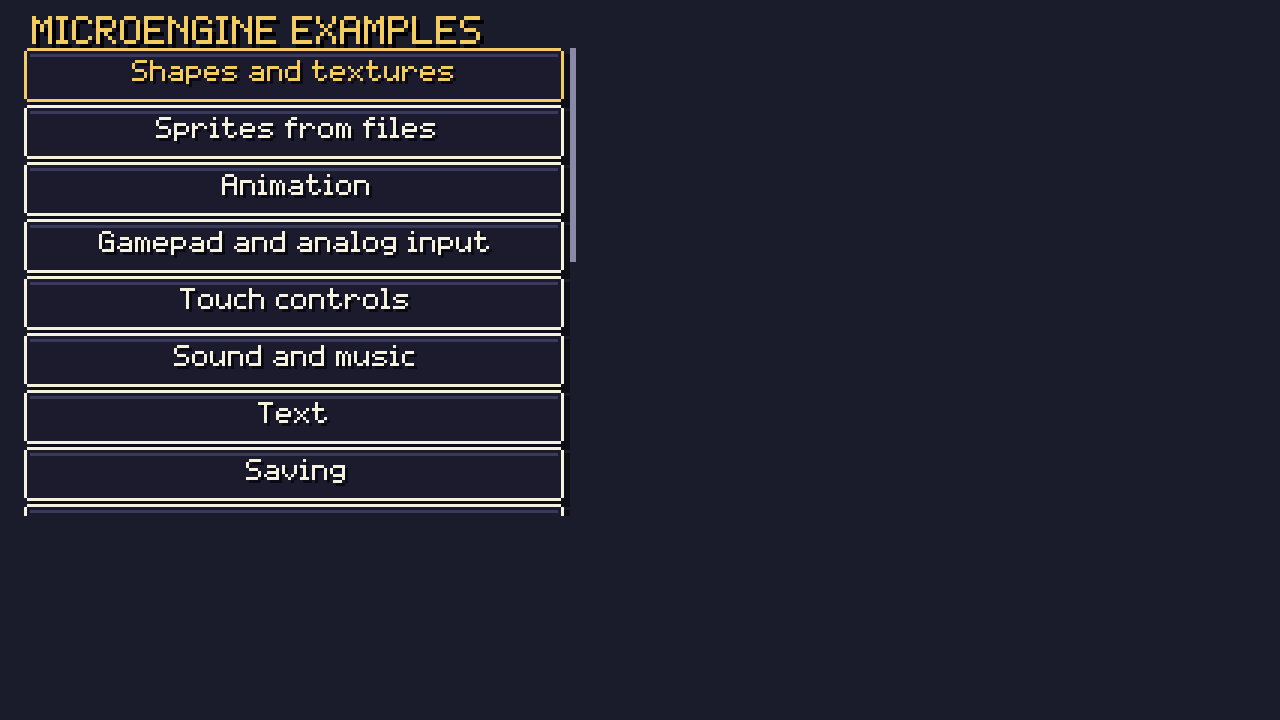
microengine run --project samples/ExamplesPick an example from the list with the arrows and confirm; Esc, P or the gamepad’s Start goes back. Each example is an
ordinary Scene; the list pushes it, and it pops itself on pause.
Shapes and textures
Every primitive of the renderer, and a texture made from an image in memory: drawn whole, stretched, cropped and tinted,
rotated, and with additive blending. Source: ShapesExample.cs.
r.FillRect(new RectF(16, 24, 48, 32), Color.Hex("3b5dc9"));r.DrawRect(new RectF(72, 24, 48, 32), Color.White, thickness: 2);r.FillCircle(new Vector2(148, 40), 16, Color.Hex("38b764"));r.FillEllipse(new Vector2(196, 40), 22, 10, Color.Hex("73eff7"));r.FillTriangle(new Vector2(232, 56), new Vector2(256, 24), new Vector2(280, 56), Color.Hex("ef7d57"));r.DrawLine(new Vector2(16, 68), new Vector2(304, 76), 2, Color.Hex("a7f070"));r.FillGradient(new RectF(16, 84, 288, 20), Color.Hex("29366f"), Color.Hex("41a6f6"), bands: 6);A texture you create yourself from a PixelImage, and release when the scene leaves:
private Texture _checker = null!;
public override void Enter(){    // A PixelImage is pixels in memory; CreateTexture uploads it to the graphics device once.    var image = new PixelImage(16, 16).Map((x, y, _) => (x / 4 + y / 4) % 2 == 0 ? Color.Hex("ffcd75") : Color.Hex("b13e53"));    _checker = Game.Graphics.CreateTexture(image);}
// A texture you create is yours to release.public override void Exit() => _checker.Dispose();r.Draw(_checker, new Vector2(16, 120)); // whole, at its top-leftr.DrawStretched(_checker, _checker.Bounds, new RectF(48, 116, 64, 24), Color.White); // stretched into a rectangler.Draw(_checker, new RectF(0, 0, 8, 8), new Vector2(124, 124), Color.Hex("73eff7")); // part of it, tintedr.Draw(_checker, _checker.Bounds, new Vector2(176, 128), Color.White, new DrawOptions { Rotation = Age, Origin = new Vector2(8, 8), Scale = new Vector2(2) }); // rotated around its centre
r.SetBlendMode(BlendMode.Additive); // light adds upr.FillCircle(new Vector2(250, 128), 14, Color.Hex("b13e53"));r.FillCircle(new Vector2(266, 128), 14, Color.Hex("3b5dc9"));r.SetBlendMode(BlendMode.Alpha); // back to normalMost games draw sprites from an atlas instead of raw textures; textures are for images you build at run time (a minimap, a generated background). Manual: Graphics.
Sprites from files
A PNG from Content/ cut into frames, a region cropped by hand, origins, mirroring, tinting and scaling. Source:
SpritesExample.cs.
private SpriteAtlas _atlas = null!;
public override void Enter(){    // Content/hero.png is a 64x16 strip of four 16x16 frames, copied next to the executable by the project file.    var content = new ContentFolder();    var sheet = content.Image("hero.png");    _atlas = new SpriteAtlasBuilder()        .AddGrid("hero", sheet, 16, 16, origin: new Vector2(8, 16))      // hero0..hero3, origin at the feet        .Add("head", sheet.Crop(0, 0, 16, 9), new Vector2(8, 9))         // part of the image        .Build(Game.Graphics);                                           // one texture for all of them}
public override void Exit() => _atlas.Dispose();// Draw puts the sprite's origin at the position: here the feet stand on the line.r.DrawLine(new Vector2(20, 80), new Vector2(300, 80), 1, Color.Hex("566c86"));float x = 40;foreach (var frame in _atlas.Frames("hero")){ r.Draw(frame, new Vector2(x, 80)); x += 32;}r.Draw(_atlas["hero0"], new Vector2(200, 80), flipX: true); // mirroredr.Draw(_atlas["hero0"], new Vector2(240, 80), tint: Color.Hex("ef7d57")); // tintedr.DrawPivoted(_atlas["hero0"], new Vector2(280, 80), rotation: 0, scale: new Vector2(2, 2 + MathF.Sin(Age * 4) * 0.2f));r.Draw(_atlas["head"], new Vector2(160, 130));Animation
An Animator with a looping clip and a one-shot clip, and a speed you change with left and right. Source:
AnimationExample.cs.
private SpriteAtlas _atlas = null!;private readonly Animator _animator = new();
public override void Enter(){    _atlas = new SpriteAtlasBuilder()        .AddGrid("hero", new ContentFolder().Image("hero.png"), 16, 16, origin: new Vector2(8, 16))        .Build(Game.Graphics);    var frames = _atlas.Frames("hero");    _animator        .Add("walk", new AnimationClip(frames, framesPerSecond: 8))                   // loops        .Add("hop", new AnimationClip([frames[1], frames[3], frames[1]], 6, loop: false)); // plays once    _animator.Play("walk");}
public override void Exit() => _atlas.Dispose();public override void Update(float dt){ if (Input.Pressed("pause")) { Game.Scenes.Pop(); return; } if (Input.Pressed("confirm")) _animator.Play("hop", restart: true); if (_animator.CurrentName == "hop" && _animator.Finished) _animator.Play("walk"); _animator.Speed = Math.Clamp(_animator.Speed + Input.Axis("left", "right") * dt, 0.25f, 3f); _animator.Update(dt);}Gamepad and analog input
Actions bound to gamepad buttons, a trigger and the right stick, read as analog values; the left stick moves with
intensity; the bindings of an action listed for display. Keys do the same, so it works without a gamepad. Source:
GamepadExample.cs.
public override void Enter(){    // Actions can be bound at any time; usually a game does it once in Game.CreateInput.    Input.Bind("boost", [Key.LeftShift], [PadButton.A, PadButton.RightShoulder])         .BindAxis("throttle", PadAxis.RightTrigger)                 // 0..1 as the trigger is pressed         .BindAxis("throttle", PadAxis.RightY, positive: false);     // or the right stick pushed up}
public override void Exit() => Input.Unbind("boost").Unbind("throttle");public override void Update(float dt){ if (Input.Pressed("pause")) { Game.Scenes.Pop(); return; }
var move = Input.Vector("left", "right", "up", "down"); // length 0..1: a light push is a slow move float speed = 60 + 120 * Input.Value("throttle") + (Input.Down("boost") ? 60 : 0); _position += move * speed * dt; _position = Vector2.Clamp(_position, new Vector2(8, 20), new Vector2(312, 172));}A game usually binds its actions once, in Game.CreateInput; binding in a scene, as here, is also allowed. One gamepad
is read at a time. Manual: Input.
Touch controls
A d-pad, a fixed joystick for a second direction, a toggle button and a back button, for one screen only. Touch controls
are drawn and read where the platform has a touch screen (phones, tablets, touch laptops, mobile browsers). Source:
TouchExample.cs.
public override void Enter(){    // A game normally declares one layout by overriding Game.CreateTouchLayout; a scene may switch to another.    _previous = Game.Touch.Layout;    Game.Touch.Layout = TouchLayout.Of(        new TouchDPad { Offset = new(100, 100), Diagonals = false },        new TouchStick("aim", "aim-left", "aim-right", "aim-up", "aim-down")        {            Placement = StickPlacement.Fixed, Anchor = TouchAnchor.BottomRight, Offset = new(100, 100),        },        new TouchButton("shield", "shield", "S") { Anchor = TouchAnchor.TopRight, Offset = new(40, 40), Mode = TouchButtonMode.Toggle },        new TouchButton("back", "pause", "<") { Anchor = TouchAnchor.TopLeft, Offset = new(30, 30), Radius = 20 })        with { Visibility = TouchVisibility.Always };}
public override void Exit() => Game.Touch.Layout = _previous;// Touch controls press ordinary actions, so the game reads them like keys...var walk = new Vector2(Input.Axis("left", "right"), Input.Axis("up", "down"));// ...and an action no key is bound to (aim-*, shield) still works through the touch source.var aim = Input.Vector("aim-left", "aim-right", "aim-up", "aim-down");Manual: Input, touch controls.
Sound and music
A synthesized sound, a WAV file, music that starts and stops with a fade, the music volume and stereo pan. Source:
SoundExample.cs. Synth, SfxParams, Wave, Song and
Instrument are in MicroEngine.Audio.Retro.
public override void Enter(){    // Register each sound once by name (a game does this in Load); playing it later is cheap.    if (!Audio.HasSound("laser"))    {        Audio.AddSound("laser", Synth.Render(new SfxParams { Wave = Wave.Saw, Frequency = 900, EndFrequency = 200, Decay = 0.25f }));        Audio.AddSoundFile("chime", new ContentFolder().PathOf("pickup.wav"));        Audio.AddMusic("loop", new Song(126)            .Track(Instrument.Lead, "A4 - C5 - E5 - C5 - | G4 - B4 - D5 - B4 -")            .Track(Instrument.Bass, "A2 . A2 . A2 . A2 . | G2 . G2 . G2 . G2 .")            .Drums("k . h . s . h . k k h . s . h .")            .Render());    }}
public override void Exit() => Audio.StopMusic();public override void Update(float dt){ if (Input.Pressed("pause")) { Game.Scenes.Pop(); return; } if (Input.Pressed("confirm")) Audio.Play("laser", pitchJitter: 0.1f); // a little variation if (Input.Pressed("action")) Audio.Play("chime", pan: Game.Random.NextSingle()); // 0 left .. 1 right if (Input.Pressed("cancel")) { if (Audio.CurrentMusic is null) Audio.PlayMusic("loop"); else Audio.StopMusic(fadeSeconds: 1); } Audio.MusicVolume += Input.Axis("left", "right") * dt; // clamped to 0..1}Manual: Audio.
Text
The built-in pixel font: plain, shadowed, outlined, scaled, centred, measured and wrapped text. Source:
TextExample.cs.
Font.Draw(r, "Plain text, upper and lower case: 0123456789 !?.,:;()+-*/", new Vector2(8, 20), Color.White);Font.DrawShadowed(r, "Shadowed text reads on any background", new Vector2(8, 32), Color.Hex("ffcd75"), Color.Black);Font.DrawOutlined(r, "Outlined", new Vector2(8, 44), Color.White, Color.Hex("b13e53"));Font.Draw(r, "x2", new Vector2(70, 40), Color.Hex("a7f070"), scale: 2);Font.DrawCentered(r, "CENTRED ON A POINT", new Vector2(240, 48), Color.Hex("73eff7"), shadow: Color.Black);
// Measure: the size of a string, for boxes and right alignment.var score = $"SCORE {Game.UpdateCount}";Font.Draw(r, score, new Vector2(312 - Font.MeasureWidth(score), 62), Color.White);
// Wrap: lines that fit a width; LineHeight spaces them.var box = new RectF(8, 78, 180, 60);r.Panel(box, MicroEngine.UI.UiTheme.Default.Panel);var lines = Font.Wrap(Story, (int)box.Width - 12);for (int i = 0; i < lines.Count; i++)    Font.Draw(r, lines[i], new Vector2(box.X + 6, box.Y + 6 + i * (Font.LineHeight + 1)), Color.White);
Manual: Text.
Saving
A save slot with a small class: loading it on entry, saving and deleting it, and where the file lives. Source:
SaveExample.cs.
/// <summary>The saved data: any class System.Text.Json can write (public properties with getters and setters).</summary>public sealed class Progress{ public int Coins { get; set; } public List<string> Visited { get; set; } = []; public DateTime SavedAt { get; set; }}private SaveStore _store = null!;private Progress _progress = null!;private string _status = "";
public override void Enter(){ // One store per game: the id names the save folder (or the browser's storage keys). _store = new SaveStore("MicroEngineExamples", saveDirectory); _progress = _store.Load<Progress>("example") ?? new Progress(); // null: no save yet, or unreadable _status = _store.Exists("example") ? "LOADED" : "NO SAVE YET";}
public override void Update(float dt){ if (Input.Pressed("pause")) { Game.Scenes.Pop(); return; } if (Input.Pressed("right")) _progress.Coins++; if (Input.Pressed("confirm")) { _progress.SavedAt = DateTime.UtcNow; _progress.Visited.Add($"room {_progress.Visited.Count + 1}"); // Save writes the whole slot at once; false means the disk or the browser refused (keep playing). _status = _store.Save("example", _progress) ? "SAVED" : "COULD NOT SAVE"; } if (Input.Pressed("cancel")) { _store.Delete("example"); _progress = new Progress(); _status = "DELETED"; }}Manual: Saving data.
Camera
A world three screens wide and high, a camera that follows a marker inside the world’s bounds with a dead zone, screen
shake, and conversions between world and screen coordinates (including the mouse). Source:
CameraExample.cs.
private static readonly RectF World = new(0, 0, 960, 540); // three screens wide, three highprivate readonly Camera2D _camera = new(320, 180){ Bounds = World, // never shows outside the world DeadZone = new Vector2(40, 24), // the target moves freely in the middle before the camera follows FollowSharpness = 6, // higher catches up faster; 0 snaps};private Vector2 _target = new(160, 90);public override void Update(float dt){ if (Input.Pressed("pause")) { Game.Scenes.Pop(); return; } _target += Input.Vector("left", "right", "up", "down") * 140 * dt; _target = Vector2.Clamp(_target, World.Position, World.Position + World.Size); if (Input.Pressed("confirm")) _camera.Shake(0.6f); // trauma 0..1, fades by itself _camera.Follow(_target, dt); _camera.Update(dt); // advances the shake}r.PushCamera(_camera); // from here on, positions are world pixelsfor (int y = 0; y < World.Height; y += 30)for (int x = 0; x < World.Width; x += 30) if (_camera.IsVisible(new RectF(x, y, 2, 2))) // skip what is off screen r.FillRect(new RectF(x, y, 2, 2), Color.Hex("566c86"));r.DrawRect(World, Color.Hex("ef7d57"), 2);r.FillCircle(_target, 5, Color.Hex("ffcd75"));r.PopCamera(); // back to screen pixels for the HUD
var screen = _camera.WorldToScreen(_target);Font.Draw(r, $"WORLD {_target.X:0},{_target.Y:0} SCREEN {screen.X:0},{screen.Y:0}", new Vector2(4, 168), UiTheme.Default.Text);if (Input.Pointer.Present){ var world = _camera.ScreenToWorld(Input.Pointer.Position); Font.Draw(r, $"MOUSE IN WORLD {world.X:0},{world.Y:0}", new Vector2(4, 156), UiTheme.Default.Muted);}Particles and light
A particle fountain and bursts with additive blending, under a light map that darkens the scene around two lights.
Source: ParticlesExample.cs.
private static readonly ParticleSpec Spark = new(){    StartColor = Color.Hex("ffcd75"), EndColor = Color.Hex("b13e5300"),   // fades to transparent    Speed = (40, 90), Angle = (-MathF.PI * 0.75f, -MathF.PI * 0.25f),      // upwards (y grows down)    Life = (0.6f, 1.2f), Gravity = 120, Size = (2, 1), Round = true,};private static readonly ParticleSpec Burst = Spark with { Angle = (0, MathF.Tau), Gravity = 0, Drag = 2, Speed = (60, 140) };
private readonly ParticleSystem _particles = new(capacity: 400) { Additive = true };   // glows add upprivate LightMap _light = null!;private Vector2 _lamp = new(160, 100);
public override void Enter() => _light = new LightMap(Game.Graphics) { Darkness = 0.85f, Shade = Color.Hex("101028") };public override void Exit() => _light.Dispose();public override void Update(float dt){ if (Input.Pressed("pause")) { Game.Scenes.Pop(); return; } _lamp += Input.Vector("left", "right", "up", "down") * 100 * dt; _particles.Emit(new Vector2(80, 150), Spark, count: 2); if (Input.Pressed("confirm")) _particles.Emit(_lamp, Burst, count: 60); _particles.Update(dt);}r.FillGradient(new RectF(0, 0, 320, 180), Color.Hex("3b5dc9"), Color.Hex("29366f"));r.FillRect(new RectF(0, 150, 320, 30), Color.Hex("257179"));_particles.Draw(r);
// Lights: rebuilt every frame, drawn over the finished scene._light.Clear();_light.Add(new Vector2(80, 140), radius: 50, brightness: 1, glow: Color.Hex("ffcd75"));_light.Add(_lamp, radius: 40, brightness: 0.9f, glow: Color.Hex("73eff7"));_light.Draw(r, Vector2.Zero, new RectF(0, 0, 320, 180)); // no camera: world and screen are the same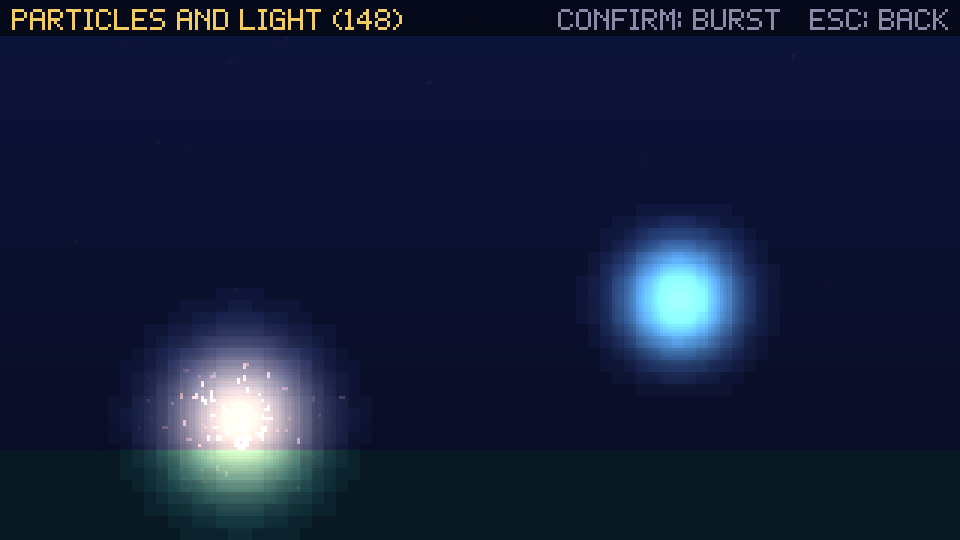
Tweens and coroutines
A tween animates a value with an easing curve; a coroutine runs a sequence (a countdown, then wait for a key) over many
updates without a hand-written state machine. Source: TweensExample.cs.
private void Slide(){ float from = _x, to = _x < 160 ? 280 : 40; // Every update until the duration ends: apply(eased progress 0..1). Then done. Tweens.Add(0.8f, t => _x = MathX.Lerp(from, to, t), Ease.OutBounce, done: () => _caption = "LANDED");}private IEnumerator Countdown(){ foreach (var word in new[] { "THREE", "TWO", "ONE" }) { _caption = word; Tweens.Add(0.3f, t => _scale = 1 + (1 - t)); // a little pop on each word yield return Wait.Seconds(0.6f); // simulated seconds, not frames } _caption = "PRESS CONFIRM"; yield return Wait.Until(() => Input.Pressed("confirm")); // checked every update _caption = "GO!"; Slide();}Both belong to the scene: they stop when the scene leaves the stack. Manual: Scenes.
Dialogue
A dialogue box built from widgets: a panel with a name tag over it, pages revealed letter by letter with a sound per
letter, a long page continued in a second box, and a yes/no answer with two buttons. Source:
DialogueExample.cs.
public override void Enter(){    var theme = UiTheme.Default;    Speaker = new Label { Color = theme.Panel.Fill, Shadow = false };    // Three lines high whatever the box holds, so the box never jumps.    Text = new Label { Width = TextWidth, Height = LinesPerBox * Font.LineHeight + (LinesPerBox - 1) };    _more = new Label("▼") { Color = theme.Accent, Shadow = false };    Dialogue = new Stack { Spacing = 0, Align = Align.Start }        .Add(new Panel(Speaker) { Padding = 3, Style = theme.Panel with { Fill = theme.Accent, Highlight = default } })        .Add(new Panel(new Stack { Spacing = 0, Align = Align.End }.Add(Text).Add(_more)));    Answers = new Stack { Orientation = Orientation.Horizontal, Visible = false }        .Add(new Button("YES", () => Answer("THANK YOU!")))        .Add(new Button("NO", () => Answer("OH... MAYBE TOMORROW.")));    Result = new Label { Color = theme.Accent };    Widgets.Content = new Layer()        .Add(Dialogue, Anchor.Bottom, new Vector2(0, -4))        .Add(Answers, Anchor.Center, new Vector2(0, -20))        .Add(Result, Anchor.Center, new Vector2(0, 10));
    Say("GARDENER", "Welcome! The gems only grow at night, and only where the moonlight touches the soil of the " +        "old garden behind the well. My lantern broke last winter, so I cannot find them on my own any more.",        "Will you help me collect them before sunrise?");}
Manual: Text that wraps and reveals.
Custom input source
Anything that is not a key can press actions: an accessibility switch, a network player, a replay. This source presses
confirm once a second, and the game reads it like the keyboard. Source:
CustomSourceExample.cs.
/// <summary>/// An action source of your own: anything that is not a key can press actions (an accessibility switch, a network/// player, a replay). This one presses "confirm" once a second. The game reads it like any key./// </summary>public sealed class Metronome : IActionSource{ public float Time; public bool IsDown(string action) => action == "confirm" && Time % 1f < 0.1f; public InputDevice Device => InputDevice.Other;}public override void Enter() => Input.AddSource(_metronome);public override void Exit() => Input.RemoveSource(_metronome);
public override void Update(float dt){ if (Input.Pressed("pause")) { Game.Scenes.Pop(); return; } _metronome.Time += dt; if (Input.Pressed("confirm")) _beats++; // the metronome and the keyboard both count}More ways to extend the engine (save storage, transitions, platforms): Extending the engine.
Controls and rebinding
A controls screen: pick jump or fire, press the key or gamepad button it should use. A control the other action
had is swapped between them, “reset to defaults” restores the game’s own defaults, and every change is saved. Source:
RebindExample.cs.
private void Listen(string action){    if (_listening is not null) return;                       // already waiting for a press    _status.Text = $"PRESS A KEY OR BUTTON FOR {action.ToUpperInvariant()} (ESC: KEEP)";    // The next press goes to the listener: not to gameplay, and not to the buttons.    _listening = Game.InputSystem.ListenForPress(press =>    {        _listening = null;        if (press is { Kind: InputEventKind.KeyDown, Key: Key.Escape }) { _status.Text = "UNCHANGED"; return; }        Assign(Input, action, press);        Save($"{action.ToUpperInvariant()} CHANGED");    });}
private void Reset(){    BindDefaults(Input);    Save("DEFAULTS RESTORED");}
public override void Update(float dt){    if (_listening is null && Input.Pressed("pause")) { Game.Scenes.Pop(); return; }    foreach (var (action, label) in _shown)    {        var b = Input.GetBindings(action)!;        label.Text = string.Join(" ", b.Keys.Select(k => k.ToString()).Concat(b.Buttons.Select(p => "PAD " + p))).ToUpperInvariant();    }}
Manual: A rebinding screen.
Settings screen
A settings screen on the widget tree: sliders for the music and effects volumes, a toggle and a value selector. The
three controls are small widgets of the example’s own, built on the widget primitives (left and right while focused,
the pointer’s press and drag, the wheel); copy them and draw them your way. Source:
SettingsExample.cs.
/// <summary>On or off: confirm while it has the focus, or a click, switches it.</summary>public sealed class Toggle(bool on = false) : Widget{    private bool _on = on;
    public bool On    {        get => _on;        set        {            if (value == _on) return;            _on = value;            Changed?.Invoke(value);        }    }
    public event Action<bool>? Changed;    public override bool Focusable => true;
    protected override Vector2 MeasureContent(UiContext context) => new(context.Font.LineHeight + 4 * context.Unit);    protected override bool OnAction(UiAction action)    {        if (action != UiAction.Confirm) return false;        On = !On;        return true;    }
    protected override void OnClick() => On = !On;
    protected override void DrawContent(IRenderer r, UiContext context)    {        var theme = context.Theme;        var box = new RectF(Bounds.X, Bounds.Y, Bounds.Height, Bounds.Height);   // a square at the start of its bounds        r.Panel(box, IsFocused ? theme.Panel with { Border = theme.Accent } : theme.Panel);        float inset = 3 * context.Unit;        if (On) r.FillRect(new RectF(box.X + inset, box.Y + inset, box.Width - 2 * inset, box.Height - 2 * inset), theme.Accent);    }
protected override void HashState(StateHasher hash) => hash.Add(_on);}/// <summary>One of several values: left and right while it has the focus, or a click, change it.</summary>public sealed class Choice(params string[] options) : Widget{ private int _index;
public IReadOnlyList<string> Options { get; } = options; public int Index { get => _index; set => _index = ((value % Options.Count) + Options.Count) % Options.Count; } public string Value => Options[_index]; public override bool Focusable => true;
protected override Vector2 MeasureContent(UiContext context) => new(Options.Max(o => context.Font.MeasureWidth(o)) + context.Font.MeasureWidth("< >"), context.Font.LineHeight + 4 * context.Unit);
protected override bool OnAction(UiAction action) { if (action is not (UiAction.Left or UiAction.Right)) return false; Index += action == UiAction.Right ? 1 : -1; return true; }
protected override void OnClick() => Index++;
protected override void DrawContent(IRenderer r, UiContext context) { var color = IsFocused ? context.Theme.Accent : context.Theme.Text; string text = $"< {Value} >"; float x = MathF.Round(Bounds.X + (Bounds.Width - context.Font.MeasureWidth(text)) / 2); context.Font.Draw(r, text, new Vector2(x, Bounds.Y + 2 * context.Unit), color); }
protected override void HashState(StateHasher hash) => hash.Add(_index);}Manual: Controls of your own.
Long list
Thirty levels in a scrolling view. Up and down move the focus and the view follows it; the wheel and a drag (a finger
on a phone) scroll it; a click or confirm picks a level. Source:
LongListExample.cs.
public override void Enter(){ var levels = new Stack(); for (int i = 1; i <= 30; i++) { string name = $"LEVEL {i:00}"; levels.Add(new Button(name, () => Picked = name) { Width = 120 }); } // A fixed height: the list is longer, so the view scrolls and cuts it at its edges. List = new ScrollView(levels) { Height = 110 }; Widgets.Content = new Panel(List); Widgets.Cancelled += () => Game.Scenes.Pop();}Manual: Long content.
Inventory
Twelve slots in a grid of four columns, the focused slot’s description below it. The arrows move between slots by
rows and columns; confirm or a click uses one item. The slot is a small widget of the example’s own. Source:
InventoryExample.cs.
public override void Enter(){ _about = new Label(" "); var grid = new Grid(columns: 4); foreach (var (name, count, about) in Items) { var slot = new ItemSlot(name, count); slot.Focused += () => _about.Text = about; // the description follows the focus slot.Used += () => _about.Text = slot.Count > 0 ? $"USED {name}, {slot.Count} LEFT" : $"NO {name} LEFT"; grid.Add(slot); } Widgets.Content = new Panel(new Stack().Add(grid).Add(_about)); Widgets.Cancelled += () => Game.Scenes.Pop();}Manual: Grids.
Bubbles and banners
A speech bubble that follows a character walking in the world, and a banner that slides into the top-right corner and
fades away (confirm shows it). Both are plain panels on a Layer; tweens move them through their offset and opacity.
Source: LayerExample.cs.
/// <summary>Slides the banner in from the right as it fades in, then fades it out two seconds later.</summary>private void ShowBanner(){ Tweens.Add(0.4f, t => { Banner.Offset = new Vector2((1 - t) * 60, 0); Banner.Opacity = t; }, Ease.OutCubic); Tweens.Add(0.4f, t => Banner.Opacity = 1 - t, delay: 2.4f);}Manual: Placing widgets anywhere.
Your own look
A pause menu whose buttons are a wooden frame and whose panel is parchment, both cut from one 24×12 image and
stretched as nine-slices to the size the widgets measure. Source:
SkinExample.cs.
Manual: Your own look.
Title menu
A title menu on the widget tree: a cursor that bobs beside the focused item, a sound when it moves, an option that
cannot be chosen yet, and the mouse moving the cursor. Source:
MenuExample.cs.
Manual: Menus.
Achievements
Achievements shown with widgets: every achievement in a scrolling list, lit once unlocked, the progressive one with
its count, and a banner that slides in for each unlock, one at a time. The tracker keeps the rules; the look is the
example’s. Source: AchievementsExample.cs.
/// <summary>The banner: hidden until an unlock slides it in.</summary>private Panel CreateBanner(){    _bannerName = new Label();    return Banner = new Panel(new Stack { Spacing = 1, Align = Align.Start }        .Add(new Label("ACHIEVEMENT UNLOCKED") { Color = UiTheme.Default.Accent })        .Add(_bannerName)) { Opacity = 0 };}
private void ShowNext(){    if (!_waiting.TryDequeue(out var achievement)) { _showing = false; return; }    _showing = true;    _bannerName.Text = achievement.Name;    Audio.TryPlay("select", 0.5f);    Tweens.Add(0.3f, t => { Banner.Offset = new Vector2(0, (t - 1) * 20); Banner.Opacity = t; }, Ease.OutCubic);    Tweens.Add(0.3f, t => Banner.Opacity = 1 - t, delay: 2f, done: ShowNext);}
Manual: Showing achievements.